
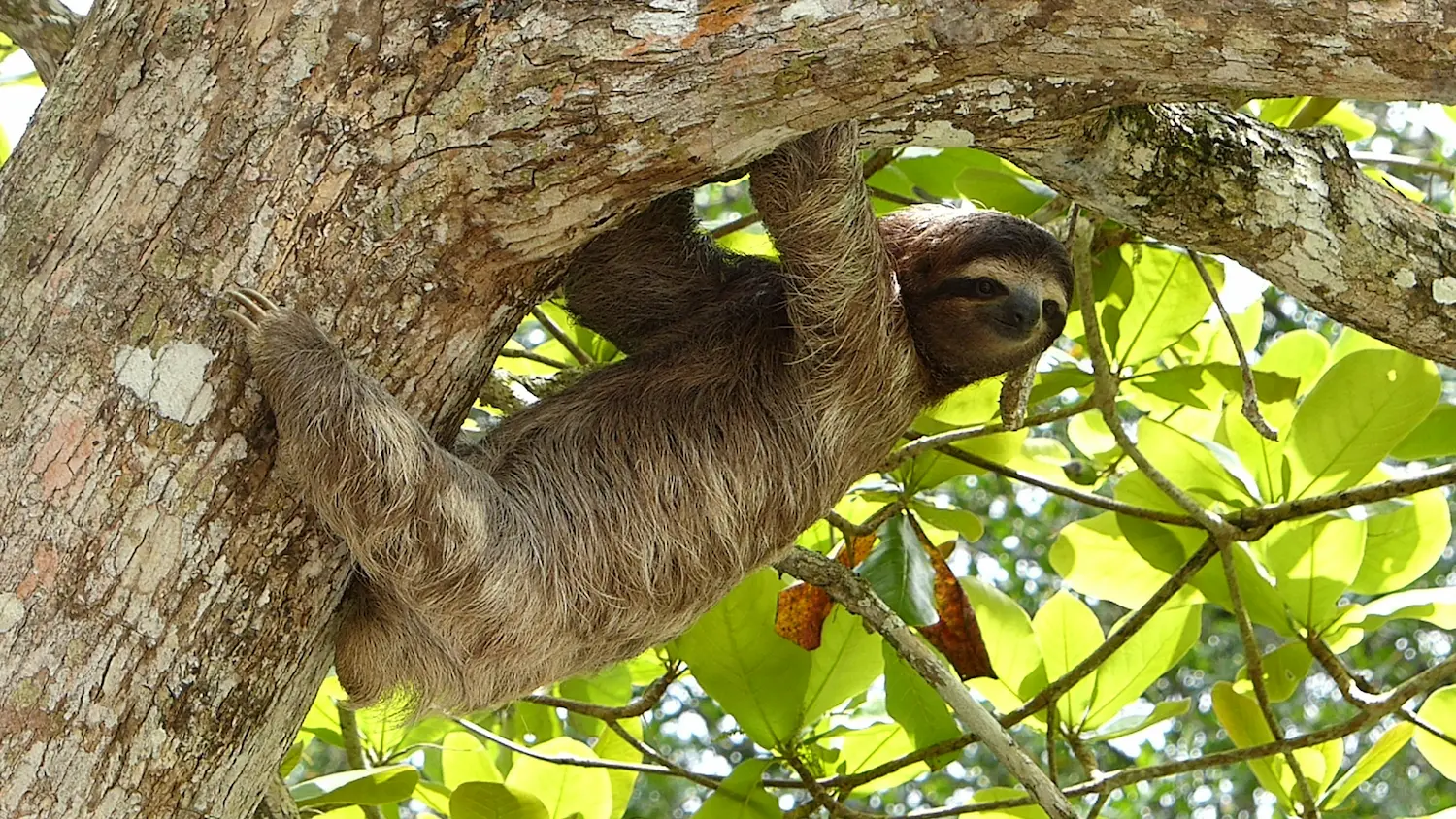

Folks are busier than ever nowadays, and that means they’re not going to wait around for a sloth-like website to load. And if you’ve noticed some sluggishness in your site, the most likely culprit is oversized images.
The good news is that this is one of the easiest speed-related issues to fix. Smaller, better-optimized images can help your site load faster and make it easier for people to stick around long enough to learn more about who you are and what you do.
How to Check If Your Images Are Slowing Down Your Website
Luckily, the oversized image issue isn’t difficult or technical to find and fix. First, let’s see whether oversized images are actually part of the problem:
- Go to the Website Image Analyzer tool and paste in your homepage URL.
- Click Analyze Images. The tool will scan your website and let you know if any images are too large (over 300KB) and need attention.
- Make note of any oversized images. Click the file name for a direct link to the image so you can download it and resize it.
What Size Your Website Images Should Be
Before we work on resizing, let’s set a target size for our images.
For image dimensions, most websites don’t need images wider than 1500-2000px, even for full-width hero or background images. If the image is being used as a smaller accent photo or thumbnail, it can be even smaller.
And in terms of file size, we will aim for files under 300KB, but smaller is better, especially if we can retain good quality (which the tool I’m about to share with you is awesome at!)
How to Resize and Compress Images with Squoosh
- Go to squoosh.app and upload your image (drag and drop or click to browse)

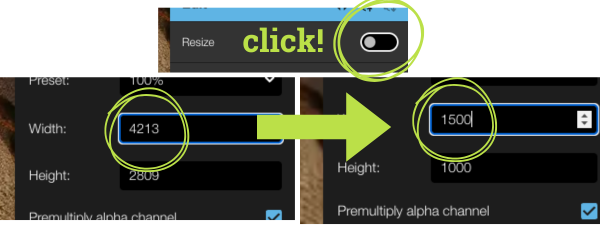
- Resize first: Click the toggle to expand the Resize panel. Change the width to your target size (1500-2000px for hero/background images, or smaller for content images). The image height adjusts automatically.
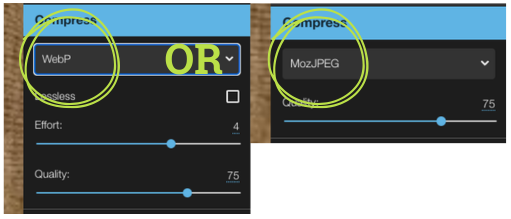
- Then Compress: On the right side, choose your format (MozJPEG for a .jpg file or WebP for a .webp file if you want smaller files and your site supports it). Adjust the quality slider, keeping it at 75 or above.
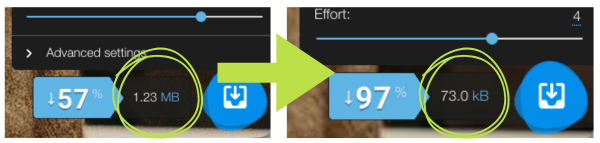
- Watch the file size in the corner update as you make changes. When it looks good, click the Download button.
- Upload the new, smaller image to your website, replacing the oversized image (you do have those website login details handy, right?).
⚠️ Before you upload: rename the file to something descriptive while you have it open. Something like therapist-office-waiting-room.jpg tells Google what the image is. A file name like IMG_4872.jpg tells it nothing. Also add descriptive alt text, if your platform allows it!
Frequently Asked Questions
Do I need to do this for every image on my site, or just the homepage?
The Image Analyzer tool only checks the URL you enter, but it’s worth going through the rest of your site too, especially your main navigation pages and any other page with lots of photos.
What’s the difference between resizing and compressing?
Resizing changes the actual dimensions of the image (how wide or tall it is in pixels). Compressing reduces the file size without changing the dimensions. Both matter, and doing them in that order gets you the best results.
Which format should I use, JPG or WebP?
JPG is the safest choice for most non-techy people. WebP files are smaller, but not every website platform handles them perfectly. If you’re not sure, go with JPG and you won’t have any surprises.
Will compressing my images make them look blurry or pixelated?
Not if you keep the quality slider at 75 or above in Squoosh. At that level, most people can’t tell the difference between the original and the compressed version. If you go too low, you’ll start to notice it, so 75 is a good floor.
What if I can’t find the original image to re-upload?
The Image Analyzer gives you a direct link to any images that are too big, so you can click and download easily. Alternatively, you can download it directly from your website (right-click, Save Image As) and run it through Squoosh.
Does image optimization help with SEO, or just speed?
Both, actually. Google uses page speed as one of its ranking factors, so faster loading can help your site show up higher in search results. It also improves the experience for real visitors, and that matters too.
A Few Smaller Images Can Make a Big Difference
To recap: check your image sizes with the Image Analyzer tool, then use Squoosh to resize anything wider than 2000px, and compress to under 300KB.
A few minutes spent on each image makes a real difference in how fast your site feels to visitors.
And if this all sounds like more than you want to take on yourself, this is exactly the kind of thing I handle in a Website Reset Day.
✨ Want more quick fixes?
Enter your email and I’ll send you my free 15-Minute Website Wins guide with more simple website improvements that don’t take all day.
By signing up, you’ll also join my mailing list; I only send 1–2 genuinely helpful emails each month.